Digital signage features for shops
OutDeck is digital signage for Malaysian shops: an app on your Android TV, Android TV box, tablet, phone or Windows PC plays your images and videos, and a web dashboard runs every screen. Schedule playlists by day and time, keep screens in step, keep playing offline once content has downloaded, restart the player app remotely and check proof-of-play reports.
Updated
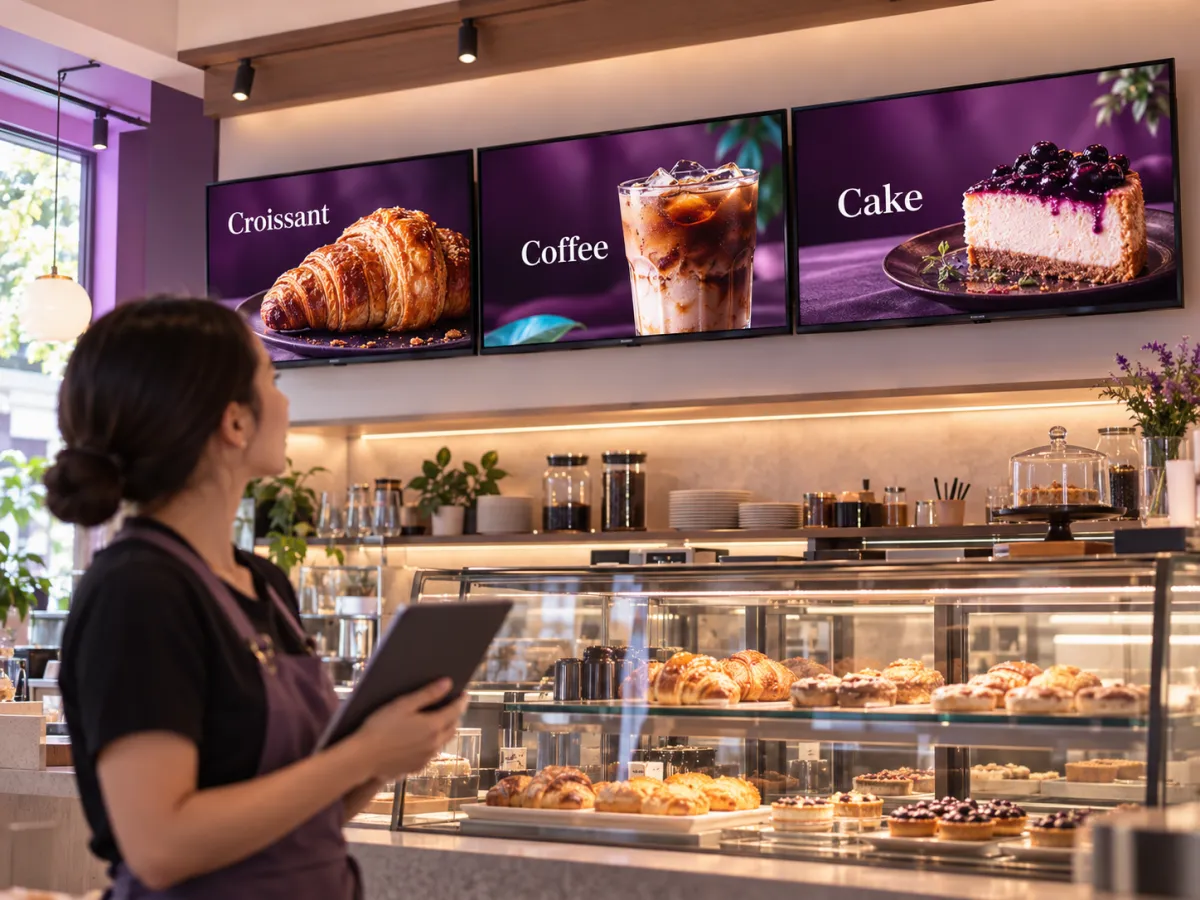
Everything OutDeck does, one page each
Each page explains exactly how the feature works, with the limits and numbers spelled out.
-
Scheduling
Give each screen an everyday playlist, then switch to other playlists by date, day and time, even past midnight.
-
Playlists
Line up images and videos, drag them into order, set how long each one shows, and let it loop all day.
-
Synchronized playback
Switch on Synchronized for a playlist and every screen showing it changes together, in step.
-
Media library
Drop in images and videos once, then use them in any playlist, for one shop or all of them.
-
Screen management
Pair a screen by typing its code, see which screens are online, and sync, identify or restart the player app without visiting the shop.
-
Android TV screens
Turn an Android TV, or a TV with an Android TV box, into a shop screen. Install the app and type its code into your dashboard.
-
Phone and tablet screens
Play your content on an Android tablet or phone. Sign in on the screen, pick a shop and a playlist, and it starts.
-
Windows screens
Play your content on a Windows 10 or 11 PC. Download the player, sign in on the screen and pick a playlist.
-
Offline playback
Each screen saves its playlist and media, so once downloaded it keeps playing when the internet drops, then catches up when it reconnects.
-
Shops and teams
All your outlets in one account, each in its own time zone, with managers and staff who see only the shops they look after.
-
Reports
See plays per day and your top 10 media for the last 7 or 30 days, plus which screens are online and when they last checked in.
What does a shop need before its first OutDeck screen goes live?
Check these four things before you pair your first screen.
- An Android TV, Android TV box, tablet or phone on Android 8.0 or newer, or a Windows 10 or 11 PC for each screen. If your TV is not an Android TV, plug an Android TV box into its HDMI port.
- The free OutDeck Player app installed on each TV, box, tablet or phone.
- An internet connection, so each screen can download its content. Once it has, it keeps playing if the connection drops.
- A web browser on a computer or phone for the dashboard. To pair a screen, type the code shown on the screen into your dashboard, or sign in on a tablet or phone.
Which plan includes which features?
Plans differ in how many shops you can run, how many screens each shop can have and how much media storage you get. On paid plans each shop includes a set number of screens, and plans are priced by how many shops you run, not by how many screens.
The free demo gives you 1 shop and 1 screen to try OutDeck on a real TV, with no card required. See Pricing for what each plan includes today.
Demo screens show a small "Powered by OutDeck" mark in the corner, which goes away when you upgrade to a paid plan.
Common questions
Do I need IT skills to run OutDeck digital signage?
No. Install the OutDeck Player app on an Android TV, Android TV box, tablet, phone or Windows PC, type the code it shows into your dashboard or sign in on the screen, then upload your images and videos, build a playlist and assign it to the screen. Everything after setup happens in a web browser.
What is the difference between a playlist and a schedule in OutDeck?
A playlist is the list of images and videos a screen plays in order, on a loop. A schedule decides when a playlist plays and where, on one screen, a screen group or a whole shop, by date, day of the week and time. Each screen can have an assigned playlist that plays whenever no schedule is on.

See it on your own screen
Start a free demo, no card required, and try OutDeck on your own Android TV, TV box, tablet, phone or Windows PC.