Screens for self-service laundries
OutDeck runs the screens in a self-service laundry with nobody in the shop. A TV can play your promos and prices, and a tablet beside the payment machine can show how to use the washers and dryers. Screens keep playing offline once their content has downloaded, and you change what they show from your phone, wherever you are.
Updated
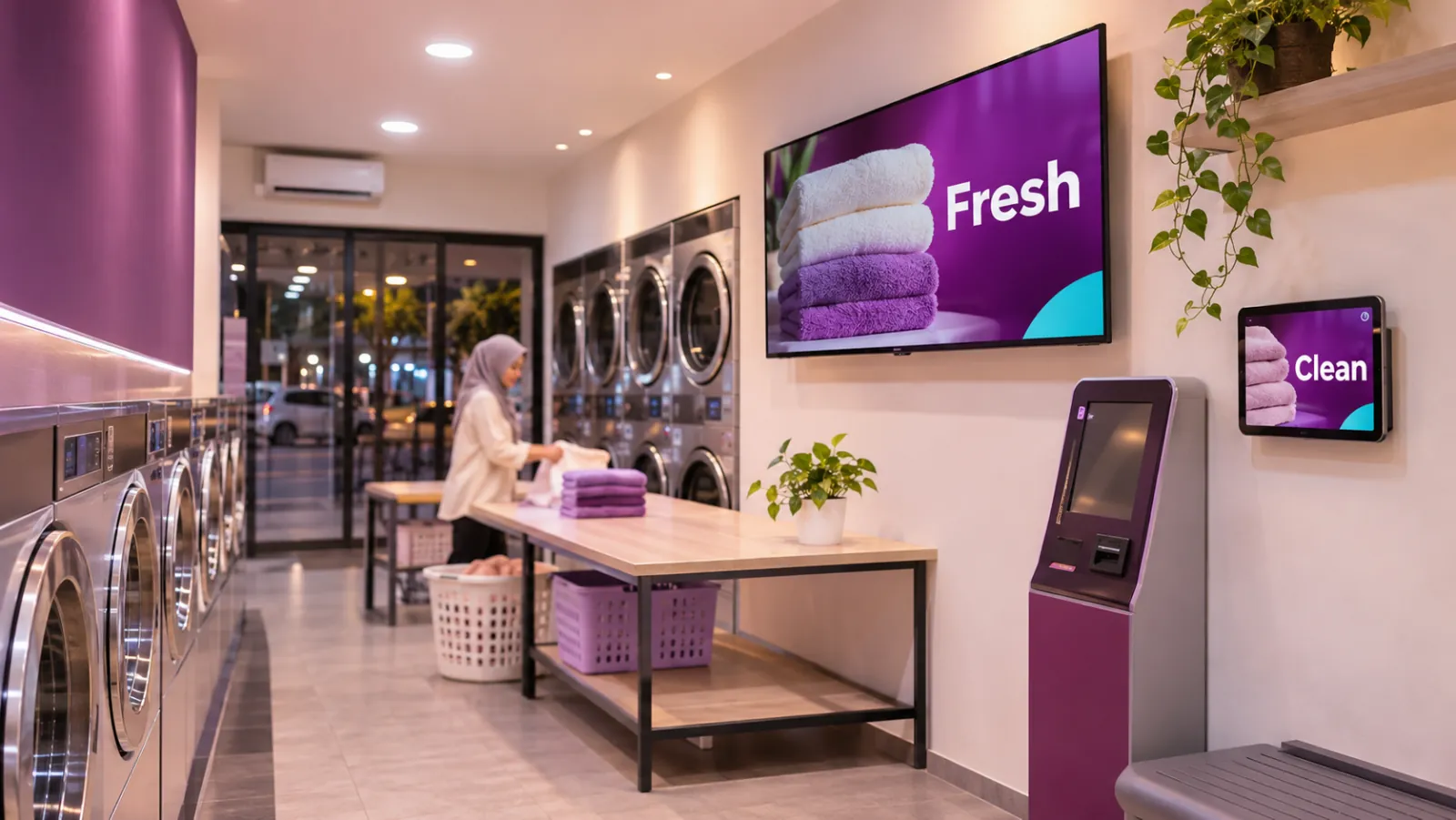
What a self-service laundry can show
-
How to use the machines
A few clear slides: load, choose a programme, pay, then collect. Short enough to read while the washer fills.
-
Prices per load
Wash and dry prices by machine size, kept up to date from the dashboard whenever they change.
-
Quiet-hour deals
A cheaper wash on weekday mornings, scheduled to show only during those hours.
-
Notices by date
A machine waiting for repair, or a festive greeting, set between two dates so it comes down by itself.
-
A late-night loop
A quieter playlist for the late hours if you open 24 hours, or display hours that black out the screen when you close.
-
Your own promos
Detergent offers, loyalty deals or a new branch opening, designed as images or short videos.
A laundry day on screen
An example for a 24-hour laundry with one landscape TV above the folding table and one tablet beside the payment machine.
-
When: Every day, all day
What plays: How to use the machines, and prices (the everyday playlist)
Which screens: Tablet by the payment machine
-
When: Every day, all day
What plays: Promos and prices (the everyday playlist)
Which screens: TV above the folding table
-
When: Monday to Friday, 7am to 11am
What plays: Quiet-hour wash deal
Which screens: TV above the folding table
-
When: Every night, 11pm to 6am
What plays: A quieter late-night loop
Which screens: TV above the folding table
-
When: Two dates you choose
What plays: A notice, such as a machine waiting for repair
Which screens: Both screens
Each row is one schedule in scheduling. Screens that are online switch by themselves in your shop's time zone; add dated rows, like a festive menu, ahead of each season.
A typical laundry setup
1 shop, 2 screens
RM29 /month
on the Essential plan
One landscape TV above the folding table for promos and prices, and one Android tablet on the wall beside the payment machine for how-to slides. Both play day and night, or use display hours if the shop closes.
Work out your own setupCan laundry screens run with nobody in the shop?
Yes. Each screen saves its content and keeps playing if the internet drops, once it has downloaded everything. An Android TV, TV box or tablet also starts by itself after a power cut once you allow “Display over other apps” during setup.
From home, the dashboard shows when each screen last checked in, so you can see if one has gone quiet. OutDeck does not send alerts, so take a look now and then, and after a power cut in the area.
How do I change a laundry screen from home?
Open the dashboard in your phone's browser, upload a new slide, and add it to a playlist or schedule it. Online screens get the change within seconds, and Sync now sends it straight away.
Does OutDeck connect to the washers or the payment machine?
No. OutDeck plays the images and videos you upload. It does not show which machines are free, take payments or read anything from your machines, so keep the prices and instructions in your slides up to date.
Common questions
Can a laundry screen play all night?
Yes. Leave display hours off and the screen plays day and night. You can also schedule a quieter playlist for the late hours, for example from 11pm to 6am.
Can a tablet show customers how to use the machines?
Yes. Make a few simple slides, give the tablet a playlist of them, and mount it beside the payment machine. Keep the tablet on its charger, because it plays with the screen on all day.
Can one account run the screens in several laundries?
Yes. Each laundry is a shop with its own screens and time zone, and a promo can be shared with every shop or kept to one.
Keep reading
- Screens that keep playing when the internet drops Each screen saves its playlist and media, so once downloaded it keeps playing when the internet drops, then catches up when it reconnects.
- Use an Android tablet or phone as a shop screen Play your content on an Android tablet or phone. Sign in on the screen, pick a shop and a playlist, and it starts.
- Manage every shop screen from one dashboard Pair a screen by typing its code, see which screens are online, and sync, identify or restart the player app without visiting the shop.
- Schedule what every screen plays, by day and time Give each screen an everyday playlist, then switch to other playlists by date, day and time, even past midnight.
- Retail digital signage for window promos, sales and new arrivals Window promos, sales that start and stop by date, and portrait screens by the fitting rooms, rolled out to every branch.
- Simple per-shop pricing for digital signage

Put your laundry screens to work
Start a free demo, no card required.