Use an Android TV or TV box as a shop screen
OutDeck Player turns an Android TV into a shop screen, and an Android TV box does the same for a TV that is not Android. Install the free app on Android 8.0 or newer, type the code the screen shows into your dashboard, and it plays your playlists. It keeps playing offline and comes back by itself after a power cut once you allow it.
 (opens in a new tab)
The free OutDeck Player app for Android TVs, TV boxes, tablets and phones
Updated
What you can do
-
Pair with a code
The screen shows an 8-character code and a QR code. Type the code into your dashboard from any browser and the TV joins your shop.
-
A TV box for other TVs
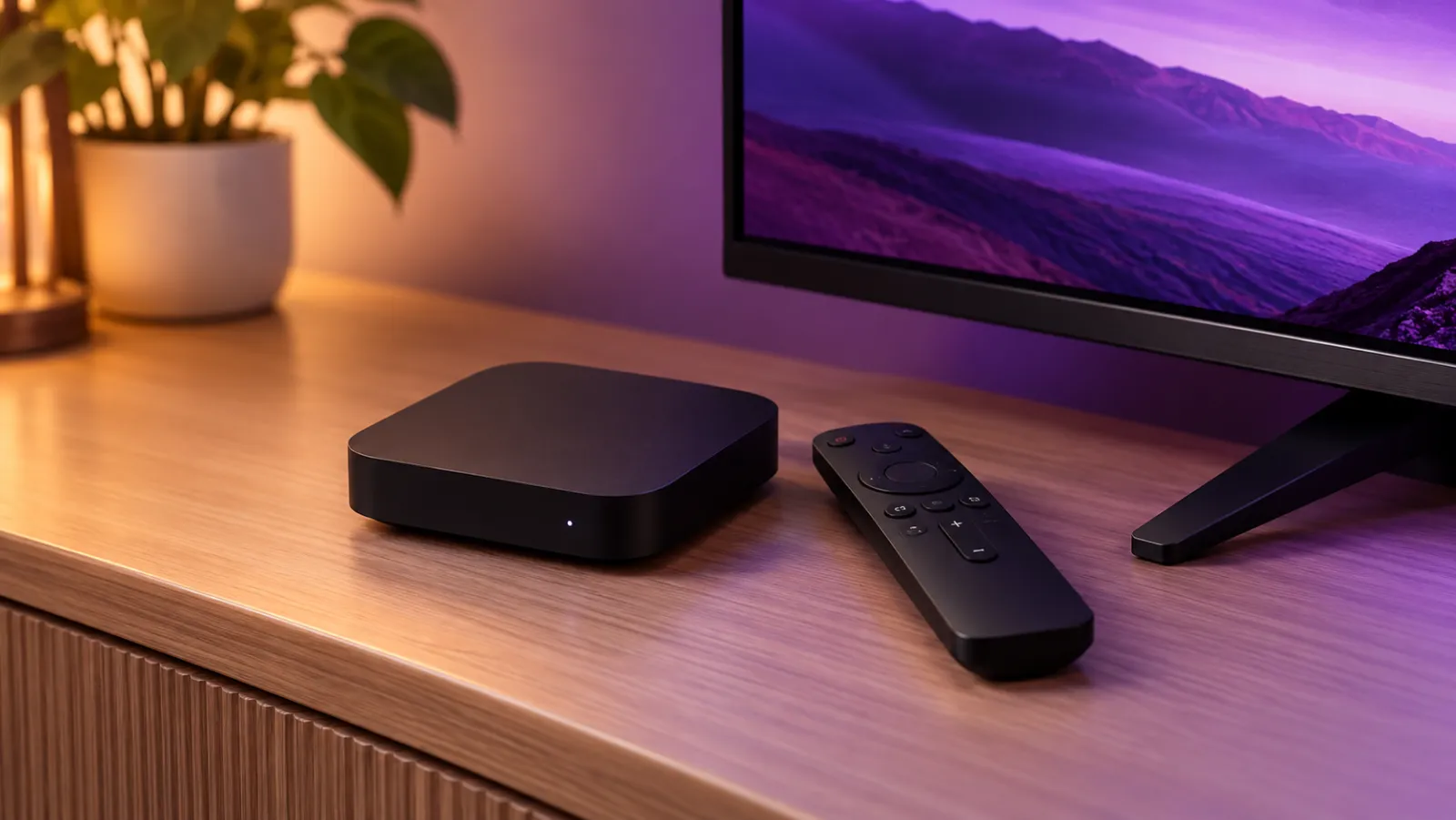
A TV that is not Android works too: plug an Android TV box or stick into its HDMI port and run OutDeck Player on that.
-
Plays offline
It saves its content and keeps playing if the internet drops, once it has downloaded everything.
-
Back after a power cut
Allow “Display over other apps” once and it starts by itself when the TV or box powers on.
-
Display hours
Set on and off times for each screen. They follow your shop's time from OutDeck's clock, not the TV's own clock.
-
Run from your dashboard
Sync now, Identify, restart the player app and see which screens are online, for one TV or a whole shop.
Which TVs can be an OutDeck screen?
An Android TV running Android 8.0 or newer runs OutDeck Player itself. A TV that is not Android can still be a screen: plug an Android TV box or stick running Android 8.0 or newer into its HDMI port, and the TV simply shows the picture.
- A menu board TV above the counter.
- A window screen facing the street or the mall walkway.
- A portrait TV beside the entrance or the fitting rooms.
- A waiting area TV in a clinic, salon or gym.
How do I set up an Android TV as a screen?
- Install the free OutDeck Player app from Google Play on the Android TV or TV box, running Android 8.0 or newer, and open it.
- The screen shows an 8-character pairing code and a QR code.
- In your dashboard, open Devices, press Add screen and type the code. Pick the shop, choose portrait or landscape and name the screen.
- When it asks to start on its own, choose Allow and switch on “Display over other apps” for OutDeck Player.
- Give the screen a playlist, and it starts playing.
How does a TV keep playing all day?
Once paired, the app keeps the screen awake, and with “Display over other apps” allowed it opens by itself after a power cut and plays its saved content. A few low-memory TV boxes cannot allow it, so test a box once before you rely on it.
Display hours black out the picture outside the times you set, by your shop's time. They do not switch the TV itself off.
What should I know before I use an Android TV?
- It needs Android 8.0 or newer, on the TV itself or on the Android TV box plugged into it.
- Each TV counts as one screen on your plan.
- For videos, H.264 at 1080p is the safest choice for an Android TV or TV box.
- Test it once after setup: switch it off at the wall, then check it comes back by itself.
The details
- Runs on
- Android TVs and Android TV boxes on Android 8.0 or newer
- Get it
- Google Play
- Set up by
- Typing the code it shows into your dashboard
- Orientation
- Portrait or landscape, chosen when you pair it
- Offline
- Keeps playing its saved content when the internet drops
- After a power cut
- Starts by itself once “Display over other apps” is allowed
- On your plan
- Counts as one screen
Common questions
Which Android version does a TV need for OutDeck?
Android 8.0 or newer, on the TV itself or on the Android TV box plugged into it. An older TV can still be a screen with a newer Android TV box on its HDMI port.
Can one Android TV box run two TVs?
No. Each Android TV or TV box runs one screen. To show something on a second TV, give that TV its own box.
Can a portrait TV be an OutDeck screen?
Yes. Choose portrait when you pair the screen and give it a portrait playlist. The picture is turned to match, so the TV can hang on its side.
Keep reading
- Manage every shop screen from one dashboard Pair a screen by typing its code, see which screens are online, and sync, identify or restart the player app without visiting the shop.
- Use an Android tablet or phone as a shop screen Play your content on an Android tablet or phone. Sign in on the screen, pick a shop and a playlist, and it starts.
- Use a Windows PC as a shop screen Play your content on a Windows 10 or 11 PC. Download the player, sign in on the screen and pick a playlist.
- Screens that keep playing when the internet drops Each screen saves its playlist and media, so once downloaded it keeps playing when the internet drops, then catches up when it reconnects.
- How to set up OutDeck digital signage on your shop TV
- Restaurant digital signage for set meals, supper and every outlet Set lunches, a supper menu past midnight and festive sets across all your outlets, with counter boards that change in step.

Put a TV to work
Start a free demo, no card required, and try it on an Android TV or TV box you already have.