How to set up OutDeck digital signage on your shop TV
Setting up OutDeck takes six steps: start a free demo, install the free OutDeck Player app on an Android TV, Android TV box, tablet or phone running Android 8.0 or newer, or a Windows 10 or 11 PC, pair the screen by typing its code into your dashboard or by signing in on a tablet or phone, upload your images and videos, build a playlist and choose when it plays. Everything after the app happens in a web browser.
Updated
What you'll need
-
Your screen
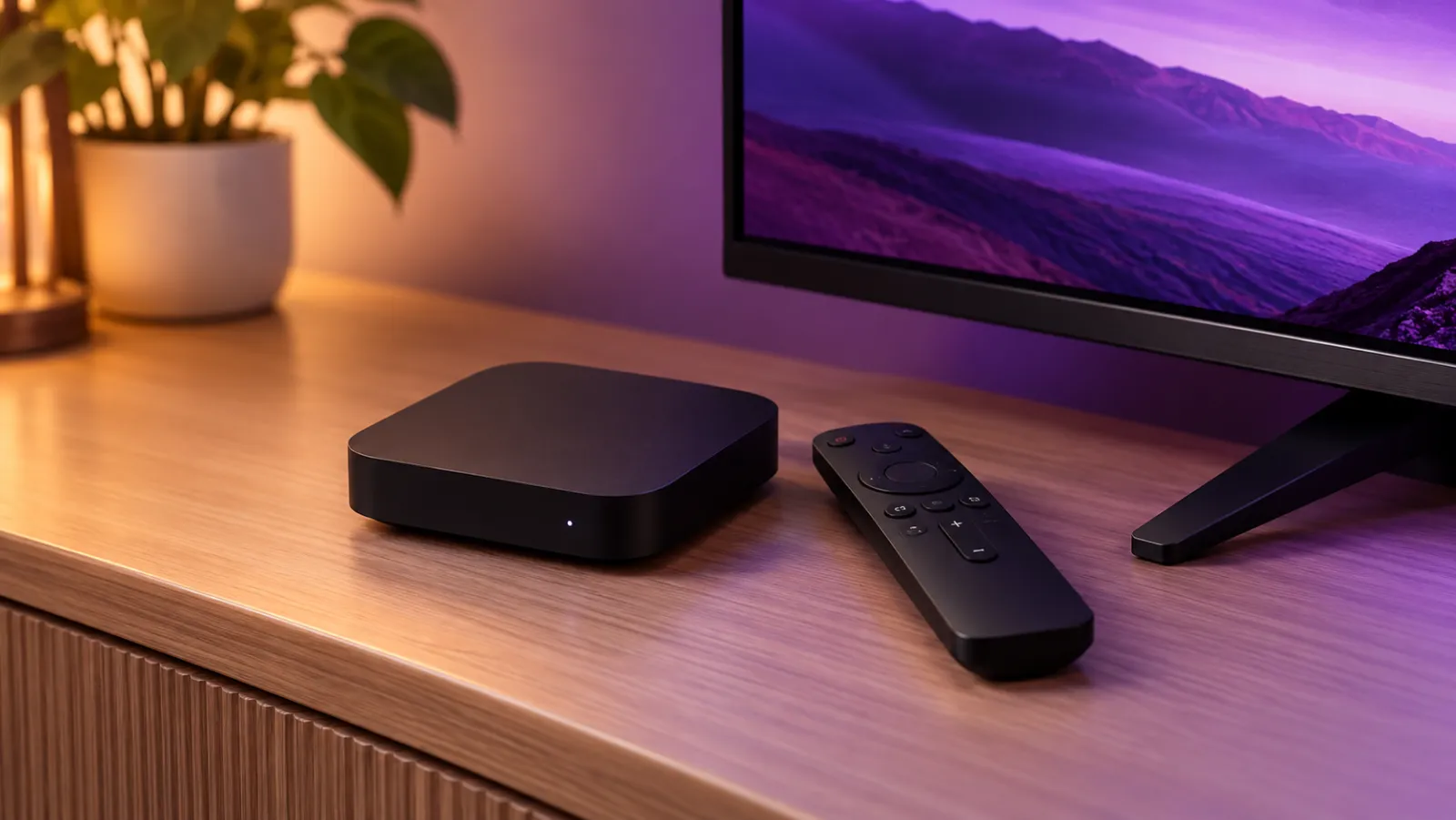
An Android TV, Android TV box, tablet or phone on Android 8.0 or newer, or a Windows 10 or 11 PC, connected to the internet. A smart TV that is not Android needs a plug-in Android TV box.
-
The free OutDeck Player app
One copy on each screen. It plays your content, and once it has downloaded its content it keeps playing if the internet drops.
-
Your images and videos
JPG, PNG or WebP images and MP4 or MOV videos, up to 100 MB each. Design them in any tool you like.
Step by step
-
Step 1: Start your free demo
Sign up with your name, your email and a password, no card required, then open the link we email you to confirm your address. Sign in, name your business, and your first shop is set up for you. Your free demo includes 1 shop and 1 screen.
More about pricing -
Step 2: Install OutDeck Player
On your Android TV, Android TV box, tablet or phone running Android 8.0 or newer, install the free OutDeck Player app from Google Play and open it. A TV or TV box shows a pairing code and a QR code. A tablet or phone asks you to sign in, or you can pair it with a code instead. So the screen comes back by itself after a power cut, choose Allow when it asks to start on its own and switch on “Display over other apps” for OutDeck Player, a one-time step. On a Windows 10 or 11 PC, download OutDeck Player for Windows from our website instead, then sign in on the screen or pair it with a code.
-
Step 3: Pair the screen
In your dashboard, open Devices, press Add screen and type the code shown on the screen. This works in any browser, on a computer or a phone. Pick the shop, choose portrait or landscape and name the screen. Each code lasts 15 minutes, and the screen shows a fresh one by itself while it is online. On a tablet or phone you can sign in on the screen instead, pick the shop and a playlist, and it pairs itself.
More about screen management -
Step 4: Upload your media
Drag your images (JPG, PNG or WebP) and videos (MP4 or MOV) into the media library, up to 20 files at a time and 100 MB each. Every upload gets a thumbnail, and you can share a file with all your shops or keep it for one.
More about the media library -
Step 5: Build a playlist
Create a playlist in portrait or landscape to match how the TV is mounted, add your media and drag the items into order. Images show for 8 seconds unless you change it, videos play in full or for the time you set, and the playlist plays on a loop.
More about playlists -
Step 6: Schedule what plays
Assign the playlist to the screen as its everyday playlist, then add schedules for the dates, days and times you want something else to play. Online screens get schedule and playlist changes within seconds by themselves, and you can still press Sync now to send the latest version straight away. A screen that is offline catches up when it reconnects.
More about scheduling
Good to know
Little things that make it easy
-
Size slides for the screen
Design landscape slides at 1920 x 1080 pixels and portrait slides at 1080 x 1920 to match a Full HD TV.
-
Find the right TV
Setting up several screens? Press Identify screen and the TV shows its name for about 15 seconds, so you know which one you are looking at.
-
Let it download first
Leave a new screen online until its content has downloaded. After that it keeps playing from its saved copy if the internet drops.
-
Set display hours
Give each screen display hours, such as 8am to 10pm, and it goes dark outside them. It does not switch the TV off.
Setup questions
Where do I find the pairing code for my screen?
Open the OutDeck Player app on the screen. On a tablet or phone, press Pair with a code instead. Until the screen is paired, it shows an 8-character code such as ABCD-EFGH, with no look-alike characters like 0 and O, plus a QR code. Each code lasts 15 minutes. While the screen is online it swaps in a fresh code by itself, and on a TV you can press OK on the remote for a new one.
Do I need to touch the screen again after setup?
Usually not. Once you have allowed it to start on its own (“Display over other apps” for OutDeck Player), it starts by itself after a power cut and stays awake without a screensaver, and you can sync, identify or restart the player app from your dashboard.
Why can't I assign a playlist to my new screen?
Check the orientation. Each playlist is portrait or landscape and only plays on screens set to the same orientation, so set the screen's orientation on the Devices page first, then pick a matching playlist.

Ready to try it on your screen?
Start a free demo, no card required, and see your first promo playing on your TV.