Use an Android tablet or phone as a shop screen
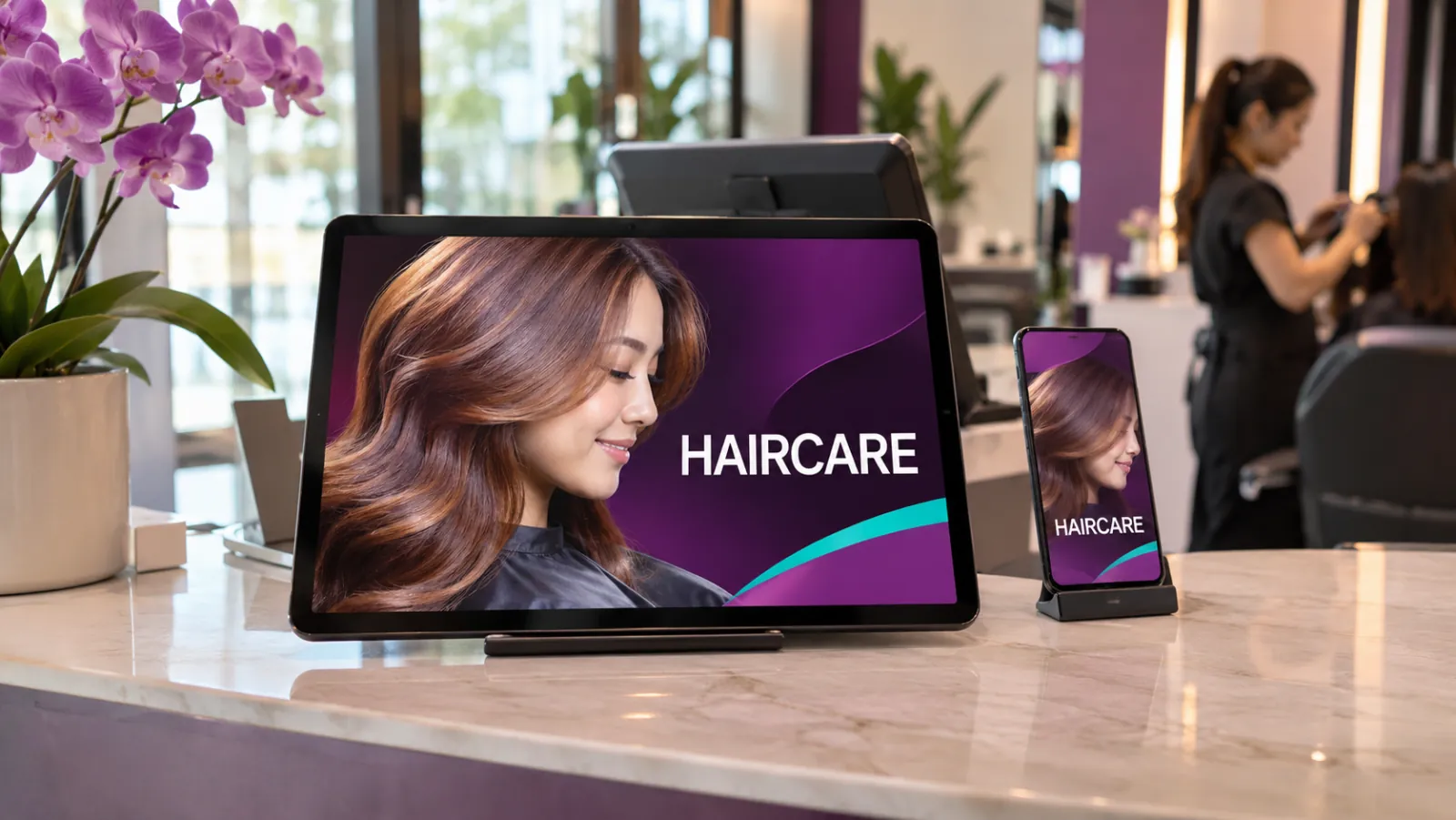
OutDeck Player also runs on Android tablets and phones, so a tablet on the counter or a phone on a shelf can be a shop screen. Install the free app on Android 8.0 or newer, sign in on the screen, pick the shop and a playlist, and it starts playing. You manage it from the same dashboard as your TVs, and it keeps playing offline.
 (opens in a new tab)
The free OutDeck Player app for Android TVs, TV boxes, tablets and phones
Updated
What you can do
-
Sign in on the screen
No code to copy across. Sign in with your OutDeck account on the tablet or phone and it sets itself up.
-
Pick a shop and a playlist
Choose where the screen is and what it shows. The playlists offered match the way you are holding the device.
-
Stays the right way round
Once paired, the screen keeps to portrait or landscape, so a bump or a turn does not flip your content.
-
Plays offline
Like a TV, it saves its content and keeps playing if the internet drops, once it has downloaded everything.
-
Back after a power cut
Allow “Display over other apps” once and it starts by itself after a power cut, an app update or a crash.
-
The same dashboard
It sits on the Devices page next to your TVs, with Sync now, Identify, restart, display hours and reports.
Where does a tablet or phone work as a shop screen?
Anywhere a TV would be too big, or there is no wall to hang one. A tablet is easy to read at arm's length, and a phone fits a tight spot.
- A price list or the daily specials on a café or salon counter.
- A promo loop on a shelf or beside the till.
- A welcome or queue notice on a clinic reception desk.
- A product video next to a display in a retail shop.
How do I set up a tablet or phone as a screen?
- Install the free OutDeck Player app from Google Play on an Android tablet or phone running Android 8.0 or newer.
- Hold it the way it will be mounted, portrait or landscape, and open the app.
- Sign in with your OutDeck account. If you have just signed up, open the link we emailed you first.
- Pick the shop, then a playlist. The screen pairs itself, takes the device's model as its name and starts playing.
- When it asks to start on its own, choose Allow and switch on “Display over other apps” for OutDeck Player.
Can I pair a tablet or phone with a code instead?
Yes. Press Pair with a code instead and the screen shows an 8-character code and a QR code, the same as a TV. In your dashboard, open Devices, press Add screen, type the code, pick the shop and choose portrait or landscape.
Use a code if your OutDeck account has more than one business. Signing in on the screen cannot choose between businesses yet, so it shows no shops for those accounts.
How does a tablet stay on as a screen all day?
Once paired, the app plays edge to edge, keeps the screen awake and stays in the player if someone presses Back. It keeps to the orientation it was paired in, and a larger tablet turns the picture itself to stay fixed to the screen.
Keep the device on its charger. It plays with the screen on all day, so it needs steady power.
What should I know before I use a tablet or phone?
- It needs Android 8.0 or newer and a touchscreen. iPads and iPhones cannot be used as screens.
- Each tablet or phone counts as one screen on your plan, the same as a TV.
- Signing in on the screen works for accounts with one business. Otherwise, pair with a code.
- Test it once after setup: switch it off and on again, and check it comes back by itself.
The details
- Runs on
- Android tablets and phones on Android 8.0 or newer, with a touchscreen
- Set up by
- Signing in on the screen, or pairing with a code
- Orientation
- Portrait or landscape, kept once paired
- Offline
- Keeps playing its saved content when the internet drops
- After a power cut
- Starts by itself once “Display over other apps” is allowed
- Managed from
- The same Devices page as your TVs
- On your plan
- Counts as one screen
- Not supported
- iPads and iPhones as screens
Common questions
Can an old Android phone become an OutDeck shop screen?
Yes, if it runs Android 8.0 or newer and its touchscreen works. Keep it on its charger, because it plays with the screen on all day. A tablet is usually the better size for customers to read.
Does an iPad work as an OutDeck screen?
No. On tablets and phones, OutDeck Player runs on Android only, so use an Android tablet. You can still run your screens from an iPad or iPhone in the web dashboard.
Why does my tablet show no shops when I sign in on it?
Signing in on the screen works for accounts with one business. If your account has more than one, press Pair with a code instead and type the code into your dashboard.
What happens if someone turns the tablet around?
Your content stays the right way round. Once paired, the screen keeps the orientation you chose, portrait or landscape, whichever way the device is turned.
Keep reading
- Use an Android TV or TV box as a shop screen Turn an Android TV, or a TV with an Android TV box, into a shop screen. Install the app and type its code into your dashboard.
- Use a Windows PC as a shop screen Play your content on a Windows 10 or 11 PC. Download the player, sign in on the screen and pick a playlist.
- Manage every shop screen from one dashboard Pair a screen by typing its code, see which screens are online, and sync, identify or restart the player app without visiting the shop.
- Screens that keep playing when the internet drops Each screen saves its playlist and media, so once downloaded it keeps playing when the internet drops, then catches up when it reconnects.
- Salon screens for treatment prices, your own work and product promos A treatment price list, before and after photos of your own work and product promos, paced slowly for clients in the chair.
- Waiting room screens for clinics and medical centres A calm waiting room loop of opening hours, services and health tips you supply, plus a portrait screen at the registration counter.

Put a tablet to work
Start a free demo, no card required, and try it on an Android tablet or phone you already have.