Salon screens for treatment prices, your own work and product promos
OutDeck is digital signage for hair and beauty salons: it shows your treatment price list, before and after photos of your own work and the products you sell on a TV at reception or facing the chairs. Clients sit for a while, so each slide can stay up longer, quiet weekdays can get their own deal, and you update it all from a phone or laptop browser.
Updated
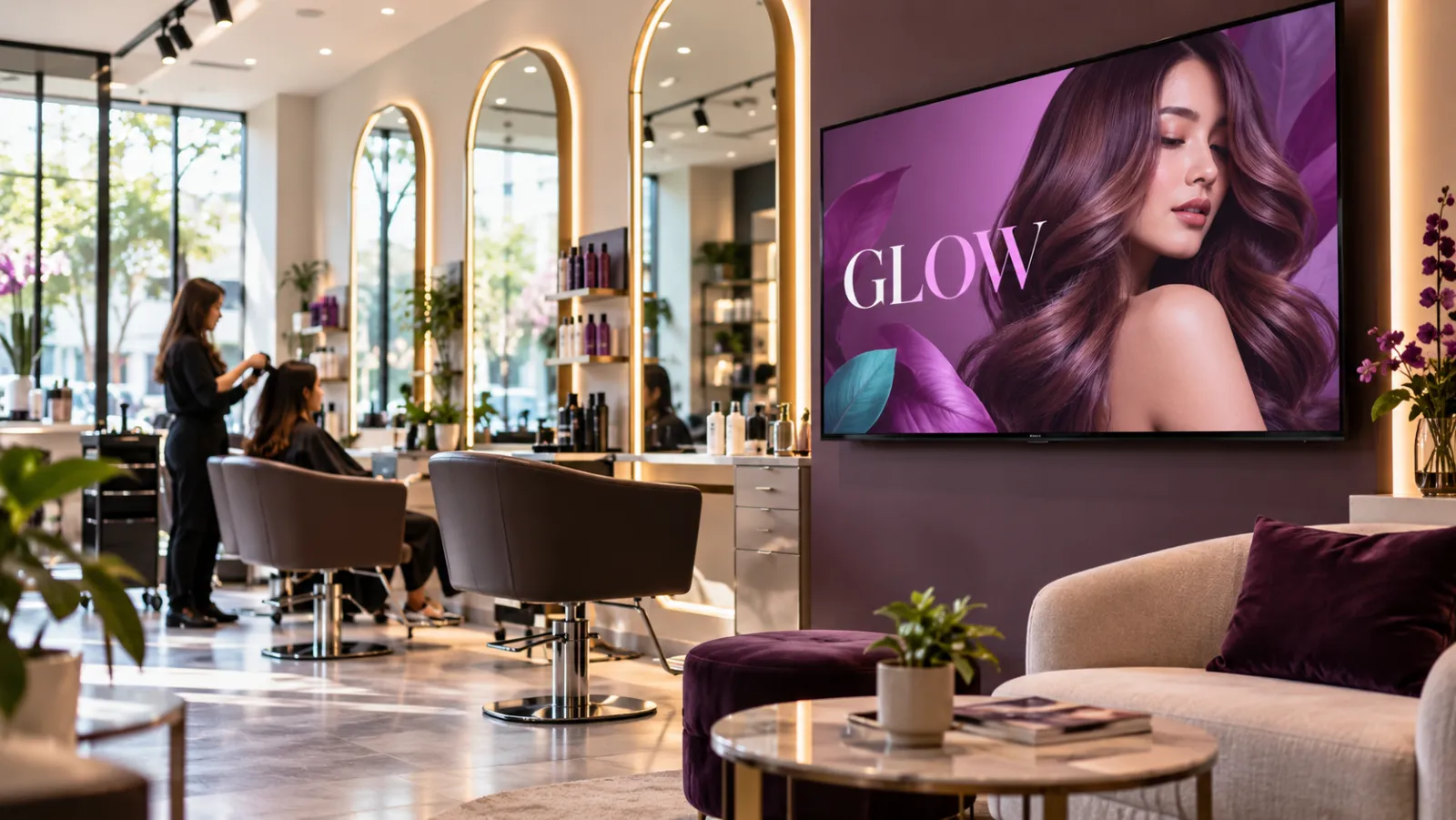
What a salon can show on its screens
-
Treatment price list
Cuts, colour, treatments and add-ons with prices, split into a few clear slides that clients can read from the waiting sofa.
-
Before and after
Photos of your own work, shown with your clients' permission, so people waiting can see what your stylists do best.
-
Products you sell
The shampoos, serums and treatments on your shelf, with a member price, playing on the screen nearest the retail display.
-
Meet the stylists
A slide for each stylist with their speciality, so new clients know who to ask for next time they book.
-
Your own social posts
Your best posts saved as images or short videos and uploaded like any other file. OutDeck plays what you upload; it does not pull posts from social media.
-
Quiet-day and festive deals
A colour deal on slow weekdays, and bridal or festive hair and makeup packages before Hari Raya, Deepavali or Chinese New Year.
A salon week on screen
An example for a salon with one portrait screen at reception and one landscape screen facing the styling chairs.
-
When: Every day, all day
What plays: Before and after photos and stylist profiles (the everyday playlist)
Which screens: Reception screen (portrait)
-
When: Every day, all day
What plays: Treatment price list and product promos
Which screens: Styling area screen
-
When: Tuesday to Thursday, 11am to 4pm
What plays: Quiet-day colour deal
Which screens: Styling area screen
-
When: Friday to Sunday, all day
What plays: Hair care products at member prices
Which screens: Reception screen (portrait)
-
When: Four weeks before Deepavali, all day
What plays: Festive hair and makeup packages
Which screens: Reception screen (portrait)
Each row is one schedule in scheduling. Screens that are online switch by themselves in your shop's time zone; add dated rows, like a festive menu, ahead of each season.
A typical salon setup
1 shop, 2 screens
RM29 /month
on the Essential plan
One portrait TV at reception for your own work and stylist profiles, and one landscape TV facing the chairs for the price list and products. Each screen plays a playlist made for its orientation, with slides held longer than in a retail window.
Work out your own setupHow long should each slide stay on a salon screen?
Longer than in a retail window. Each playlist has a default time for images, anywhere from 1 to 600 seconds, and new playlists start at 8 seconds. Clients in the chair have time to look, so 12 to 20 seconds per photo feels calm and gives them time to read a price.
You can give a single slide its own time, such as 30 seconds for the full price list. Videos play to the end unless you set a shorter time on that item, which trims them. Pick how each photo comes in, such as a crossfade or a slide, or leave it as a straight cut. Videos always fade in, and the playlist loops all day.
Where should a salon put its screens?
- At reception or the waiting sofa, where new clients look while they wait. A portrait screen here suits a lookbook of your own work.
- Facing the styling chairs, so clients can see it directly while their colour develops.
- Not behind the chairs. Clients would only see it in the mirror, where every word reads backwards.
- Near the retail shelf, if you want product promos next to the products themselves.
How do I make a social post fill the salon screen?
Square and tall posts keep their shape on the TV, with black bars filling the rest. To fill the screen, place the post on a full-size background in your design tool first: 1080 x 1920 pixels for a portrait screen, or 1920 x 1080 for landscape.
Save it as a JPG, PNG or WebP image, or a short video as MP4 or MOV, up to 100 MB each, then upload it to your media library and add it to a playlist.
Common questions
Can I show before and after photos on my salon screen?
Yes. Upload photos of your own work and add them to a playlist like any other image. Ask your clients for permission first, and crop out faces if they prefer.
Can a salon run a deal only on quiet weekdays?
Yes. Give the deal playlist a schedule with only your quiet days ticked, for example Tuesday to Thursday from 11am to 4pm. Outside those times the screen goes back to your everyday playlist.
Can my salon screen show my social media posts?
Only the ones you save and upload. OutDeck does not connect to social media accounts, so export your own posts as images or videos and add them to a playlist.
Keep reading
- Playlists that loop all day on your shop TVs Line up images and videos, drag them into order, set how long each one shows, and let it loop all day.
- One media library for all your shop screens Drop in images and videos once, then use them in any playlist, for one shop or all of them.
- Use an Android tablet or phone as a shop screen Play your content on an Android tablet or phone. Sign in on the screen, pick a shop and a playlist, and it starts.
- Schedule what every screen plays, by day and time Give each screen an everyday playlist, then switch to other playlists by date, day and time, even past midnight.
- Waiting room screens for clinics and medical centres A calm waiting room loop of opening hours, services and health tips you supply, plus a portrait screen at the registration counter.
- Simple per-shop pricing for digital signage

Put your salon price list on screen
Start a free demo, no card required.