Synchronized playback: screens that play in step
Synchronized playback makes every OutDeck screen showing the same playlist play the same item in step, so a row of menu boards or window screens changes together. Switch it on per playlist in the playlist builder; it is off by default. Screens stay in step using a shared clock from OutDeck and small speed adjustments during videos.
Updated
What you can do
-
One switch per playlist
Tick Synchronized in the playlist builder. It is off by default, so only the playlists you choose play in step.
-
A shared clock
Each screen compares its own clock with OutDeck's when it checks in, then works out which item should be on screen right now.
-
Videos stay lined up
When a video is ready, the screen jumps to the right spot, then speeds up or slows down by up to 5 percent to stay with the others.
-
Late screens catch up
A screen switched on later, or back after a power cut, joins at the item the others are showing instead of starting from the top.
-
Line them up again
Press Restart playlist and every screen playing it in your shops goes back to the first item together.
-
The whole picture on each screen
Every screen shows the full item, the same as the screen beside it. OutDeck does not split one picture across several screens.
What does synchronized playback do?
Without it, each screen plays its playlist on its own timing. Two screens switched on a minute apart show different items, and they stay out of step.
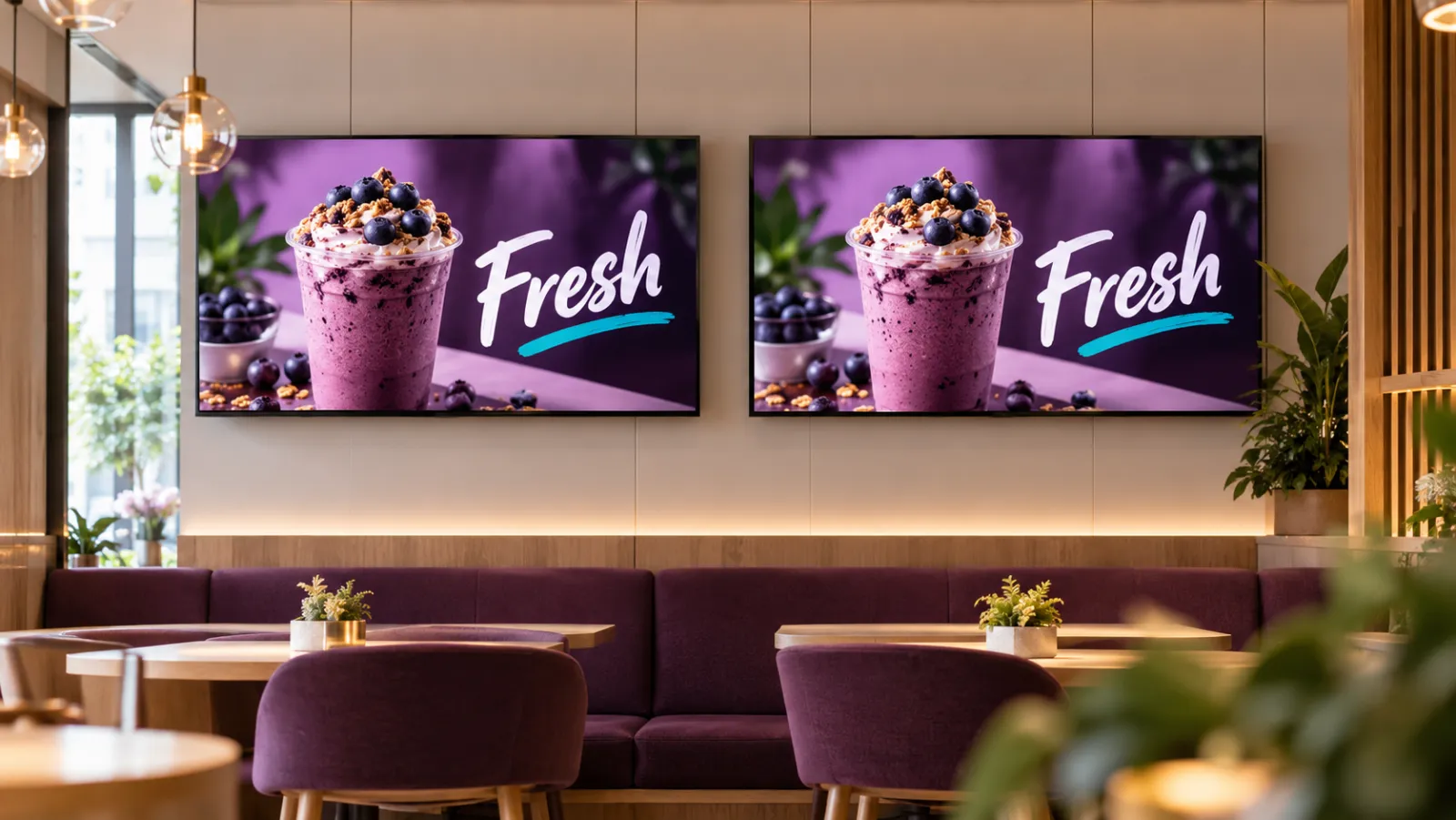
With Synchronized switched on, every screen showing that playlist works out its place from the same clock. They all show the same item and change together, in step.
Where is synchronized playback useful?
Anywhere customers can see more than one screen at once, and a mismatch would look untidy.
- A row of 2 or 3 menu boards above a counter, changing together.
- Window screens facing the street that switch offers together.
- Screens around a gym floor, showroom or salon that change at once.
- One promo video playing on several screens at the same time.
How do I turn on synchronized playback?
- Open the playlist in the playlist builder.
- Tick Synchronized. It stays off until you turn it on.
- Put the playlist on each screen, or schedule it for a screen group or the whole shop.
- If you like, press Restart playlist so every screen starts from the first item together.
How do the screens stay in step?
Each time a screen checks in, it measures the gap between its own clock and OutDeck's clock and corrects for it. From that shared time, every screen reaches the same answer: which item, and which moment of it, should be on screen now.
Images change together on every screen. For videos, the screen jumps to the right spot as soon as the video is ready, then checks again every second. If it drifts a little, it speeds up or slows down by up to 5 percent until it is back in line. If it drifts further, for example after a stall, it jumps straight to the right spot.
Can synchronized screens show one big picture together?
No. Every screen shows the same full item as the screen next to it. OutDeck does not cut one image or video into pieces across several screens.
Synchronized lines up the screens that are playing the same playlist. If you want a different picture on each screen, give each screen its own playlist.
What should I know before I use synchronized playback?
- Screens play in step and are closely matched, but not down to the exact frame.
- Each screen needs to have checked in online at least once to set its clock.
- Different TV models can drift a little more than a row of identical screens.
- Only screens playing the same playlist are lined up with each other.
- Every screen needs an Android TV, Android TV box, tablet or phone on Android 8.0 or newer.
How do I line synchronized screens up again?
Press Restart playlist in the playlist builder or on the playlist list. Every screen playing that playlist goes back to the first item together.
Restarting the player app from the Devices page, on one screen or on every screen in a shop, does the same for its synchronized playlist. All the screens playing it start again from the first item, so they come back together.
The details
- How to turn it on
- The Synchronized switch in the playlist builder, off by default
- Which screens
- Every screen showing the same playlist
- Timing
- A shared OutDeck clock, corrected on each screen when it checks in
- Images
- Change together on every screen
- Videos
- Jump to the right spot when ready, then speed changes of up to 5 percent
- How close
- In step and closely matched, not to the exact frame
- Start again together
- Restart playlist, or restart the player app from the Devices page
- Screens
- Android TV, Android TV box, tablet or phone on Android 8.0 or newer
Common questions
Can I turn synchronized playback on for just one playlist?
Yes. Synchronized is a switch on each playlist and is off by default. Your other playlists keep playing on each screen's own timing.
Do synchronized screens need to be the same TV model?
No. Each screen works out its place from the shared clock, so the screens do not need to match, as long as each is an Android TV, Android TV box, tablet or phone on Android 8.0 or newer. A TV and a tablet can play in step, and different models can drift a little more than identical ones.
Do synchronized screens need to share the same Wi-Fi?
No. Each screen sets its clock against OutDeck over the internet, not against the screen beside it. Each one only needs to have checked in at least once.
What happens to a synchronized screen after a power cut?
When the power comes back and the player app starts again, the screen plays from its saved copy, as long as it had downloaded its content before. It works out from its clock where the others are and joins at that item instead of starting from the top, then fine-tunes its clock at its next check-in.
Keep reading
- Playlists that loop all day on your shop TVs Line up images and videos, drag them into order, set how long each one shows, and let it loop all day.
- Schedule what every screen plays, by day and time Give each screen an everyday playlist, then switch to other playlists by date, day and time, even past midnight.
- Manage every shop screen from one dashboard Pair a screen by typing its code, see which screens are online, and sync, identify or restart the player app without visiting the shop.
- Restaurant digital signage for set meals, supper and every outlet Set lunches, a supper menu past midnight and festive sets across all your outlets, with counter boards that change in step.
- Retail digital signage for window promos, sales and new arrivals Window promos, sales that start and stop by date, and portrait screens by the fitting rooms, rolled out to every branch.
- Gym screens for class timetables, membership promos and trainers This week's class timetable, membership promos and trainer profiles, with different content for the morning and evening crowds.

Line up your screens
Start a free demo on your own Android TV, TV box, tablet or phone, no card required. Playing in step needs two or more screens, so add more when you choose a plan.