How to turn your shop TV into a digital menu board
To turn a shop TV into a menu board, check that it runs Android 8.0 or newer, or plug an Android TV box into its HDMI port. Install the free OutDeck Player app, pair the TV with your dashboard, upload a menu designed at 1920 x 1080 and set breakfast and lunch menus to switch on their own.
Updated
What do you need for a TV menu board?
- A TV on the wall where customers queue or sit.
- Android 8.0 or newer, on the TV itself or on an Android TV box plugged into its HDMI port.
- Wi-Fi or a network cable, to fetch your menu and its changes.
- Your menu as images (JPG, PNG or WebP) or short videos (MP4 or MOV), up to 100 MB each.
- A free OutDeck demo, no card required. It covers 1 shop and 1 screen.
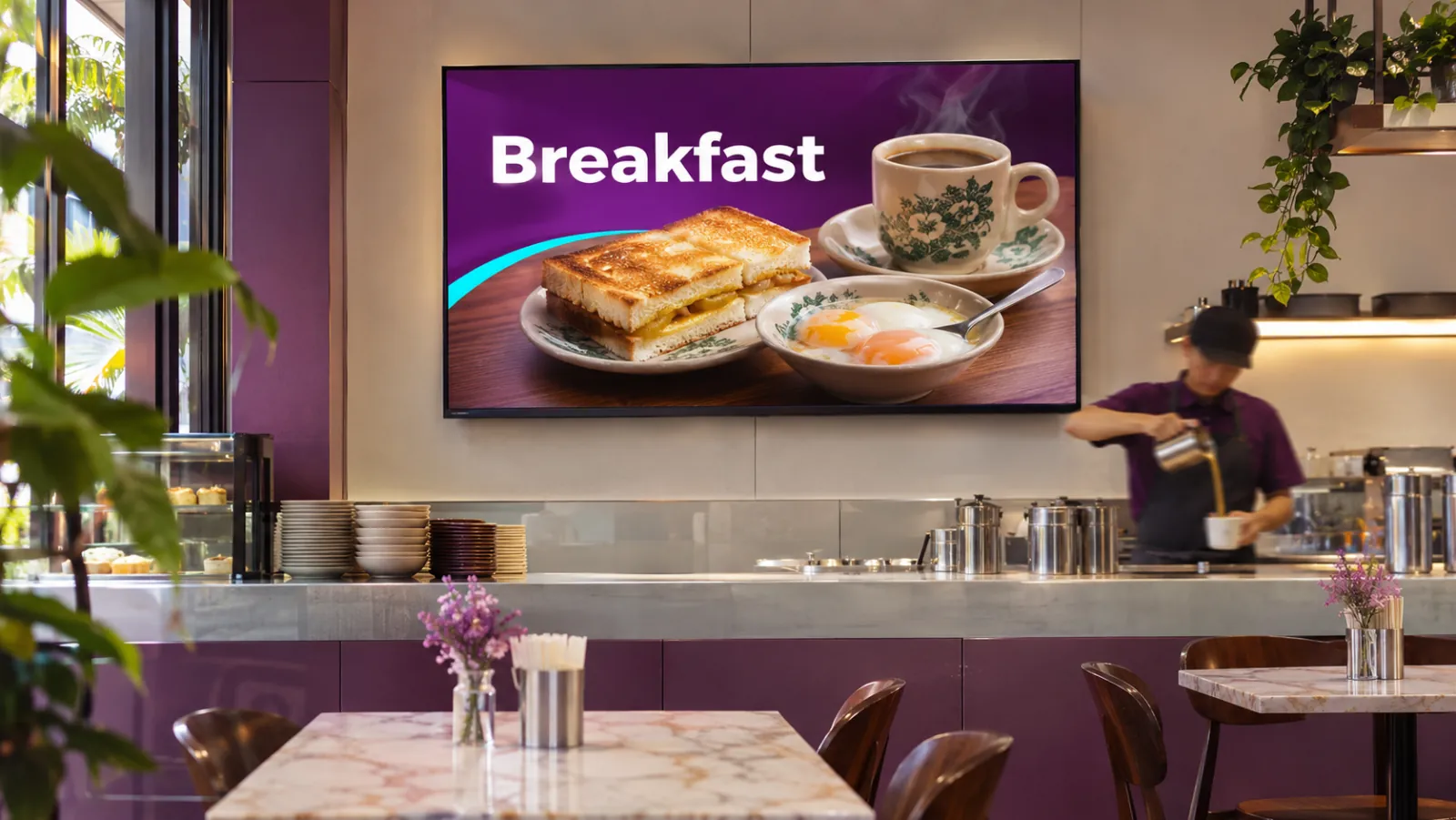
Step 1: Check whether your TV runs Android
If Google Play is on the TV's home screen, it runs Android. To see the version, open the TV's settings and look under About. OutDeck Player needs Android 8.0 or newer.
A TV that is not Android, or runs an older version, can still be the menu board. Plug an Android TV box or stick into its HDMI port and use the box instead; the TV simply shows the picture. Each box runs one screen.
Step 2: Install OutDeck Player and pair the TV
- Install the free OutDeck Player app from Google Play on the TV or TV box, and open it.
- The TV shows an 8-character pairing code and a QR code.
- In your dashboard, open Devices, press Add screen and type the code. Pick the shop, choose landscape (or portrait for a TV on its side) and name the screen, such as "Counter menu".
- When the TV asks to start on its own, choose Allow and switch on "Display over other apps" for OutDeck Player, so the menu comes back by itself after a power cut.
New to OutDeck? The how-to page covers signing up and setting up your first shop.
Step 3: Design your menu
Design the slides in the tool you already use, then export them as images.
- Size: 1920 x 1080 pixels for a landscape TV, 1080 x 1920 for a portrait one.
- Layout: one part of the menu per slide, such as coffee, tea and food, with prices large enough to read from the queue.
- Edges: keep text a little in from the edges, because some TVs crop them.
- Files: JPG, PNG or WebP. For moving pictures, a short MP4 with H.264 video at 1080p plays best on a TV or TV box.
Step 4: Build the menu playlist
Upload the slides to your media library, create a landscape playlist (portrait for a TV on its side) and drag the slides into order. The playlist loops all day.
- Images show for 8 seconds unless you change it, from 1 to 600 seconds each. Give a full menu slide 15 to 30 seconds so people can read it.
- Videos play to the end, or for a shorter time you set.
- A playlist is portrait or landscape and only plays on screens set the same way.
Step 5: Switch menus by time of day
Make the full menu the TV's everyday playlist, then add a schedule for each menu that runs at set times. When a schedule ends, the full menu comes back by itself, and a late window such as 10pm to 1am runs as one overnight block.
| What plays | Days | Time | Priority |
|---|---|---|---|
| Full menu (everyday playlist) | Every day | All day | 0 |
| Breakfast sets | Monday to Friday | 7am to 11am | 20 |
| Lunch combos | Monday to Friday | 11.30am to 2.30pm | 20 |
| Weekend brunch | Saturday and Sunday | 8am to 1pm | 20 |
| Supper menu | Friday and Saturday | 10pm to 1am | 20 |
Step 6: Set display hours and test a power cut
Give the screen display hours that match your opening times, such as 7am to 10pm. Outside them OutDeck blacks out the screen and turns the brightness down. It does not switch the TV off, so use the TV's own timer if you want it fully off.
Then switch the TV, or its TV box, off at the wall and on again. It should come back to the menu by itself. A few low-memory TV boxes cannot allow "Display over other apps", so test a box once before you rely on it.
Changing the menu later
Edit the slide in your design tool, export it again and swap it into the playlist. Online screens pick up the change within seconds by themselves, and the new slide shows from the start of the next loop.
A screen that is offline keeps playing its saved menu and catches up when it reconnects.
Common questions
How many menu items fit on one TV screen?
For a menu people read while they queue, about 8 to 12 items with prices on one landscape slide. For more, split the menu across two slides or two screens.
Does a menu board TV need Wi-Fi all the time?
Only to fetch changes. Once it has downloaded its playlist, it keeps playing the saved menu if the internet drops, and it catches up when the connection is back.
Can two TVs side by side show one menu?
Yes. Design the menu as two images, one for each TV, and give each TV its own playlist with its half. To have a row of TVs change slides together instead, give them the same playlist and switch on Synchronized for it.
Keep reading
- How to set up OutDeck digital signage on your shop TV
- Digital menu boards for cafés and coffee shops A counter menu board that moves from breakfast to lunch to afternoon drinks by itself, plus a portrait screen for the cake display.
- Restaurant digital signage for set meals, supper and every outlet Set lunches, a supper menu past midnight and festive sets across all your outlets, with counter boards that change in step.
- Menu screens for food stalls and kiosks A tablet or TV as your stall's menu board, switching menus by time of day and updating prices from your phone.
- Schedule what every screen plays, by day and time Give each screen an everyday playlist, then switch to other playlists by date, day and time, even past midnight.
- Use an Android TV or TV box as a shop screen Turn an Android TV, or a TV with an Android TV box, into a shop screen. Install the app and type its code into your dashboard.

Put your menu on screen
Start a free demo, no card required, and put your menu on your own TV.